



Most BD teams start their mornings the same way. Open SAM.gov. Check a few state portals. Scroll through results. Copy links into a spreadsheet.
It works, but it does not scale. There are over a thousand procurement sites across 50+ countries, and your team has finite hours in the day.
Craxy AI sourcing agents change this equation. You tell the agent what to look for, connect your company profile, and it scans procurement sites around the clock — surfacing scored opportunities directly in your workspace.
What You'll Need
Before getting started, make sure you have:
Knowledge base documents are optional but highly recommended. The AI uses them to score opportunities against your actual capabilities. Without them, scoring will be less accurate.
Step 1: Open the Sourcing Dashboard
From your main dashboard, click Find RFPs in the left sidebar. This is your sourcing command center — where all your agents and results live. If this is your first time, you will see the onboarding wizard automatically.
Step 2: Complete the Onboarding Wizard
The onboarding wizard runs once and takes about 90 seconds. It collects three things that improve your results:
Review your selections and click Complete Setup. You are ready to create your first agent.
Step 3: Create Your First Agent
Click the Create Agent button in the top right corner of the sourcing dashboard. Here is what each field does:
| Field | What It Does | Example |
|---|---|---|
| Agent Name | A label for your reference. Auto-fills from keywords if blank. | "Federal IT Contracts" |
| Search Prompt | The most important field. Describe what you are looking for in natural language. | "IT modernization, cloud migration, and cybersecurity services for federal agencies" |
| Industry | Defaults to your onboarding selection. Override per agent. | Information Technology |
| Country / State | Geographic targeting. State appears for USA. | USA / Virginia |
| Schedule | How often the agent scans. Daily recommended for competitive markets. | Daily |
| Schedule Time | When the agent runs (UTC). Set early so results are ready in the morning. | 06:00 UTC |
| Notification Emails | Receive alerts when new opportunities are found. Comma-separated. | [email protected] |
Click Create Agent to deploy. The agent starts its first scan immediately — results typically arrive within a few minutes.
Step 4: Review Your Results
When the scan completes, click the agent card to open the detail view. All found opportunities appear in a sortable, filterable data table.
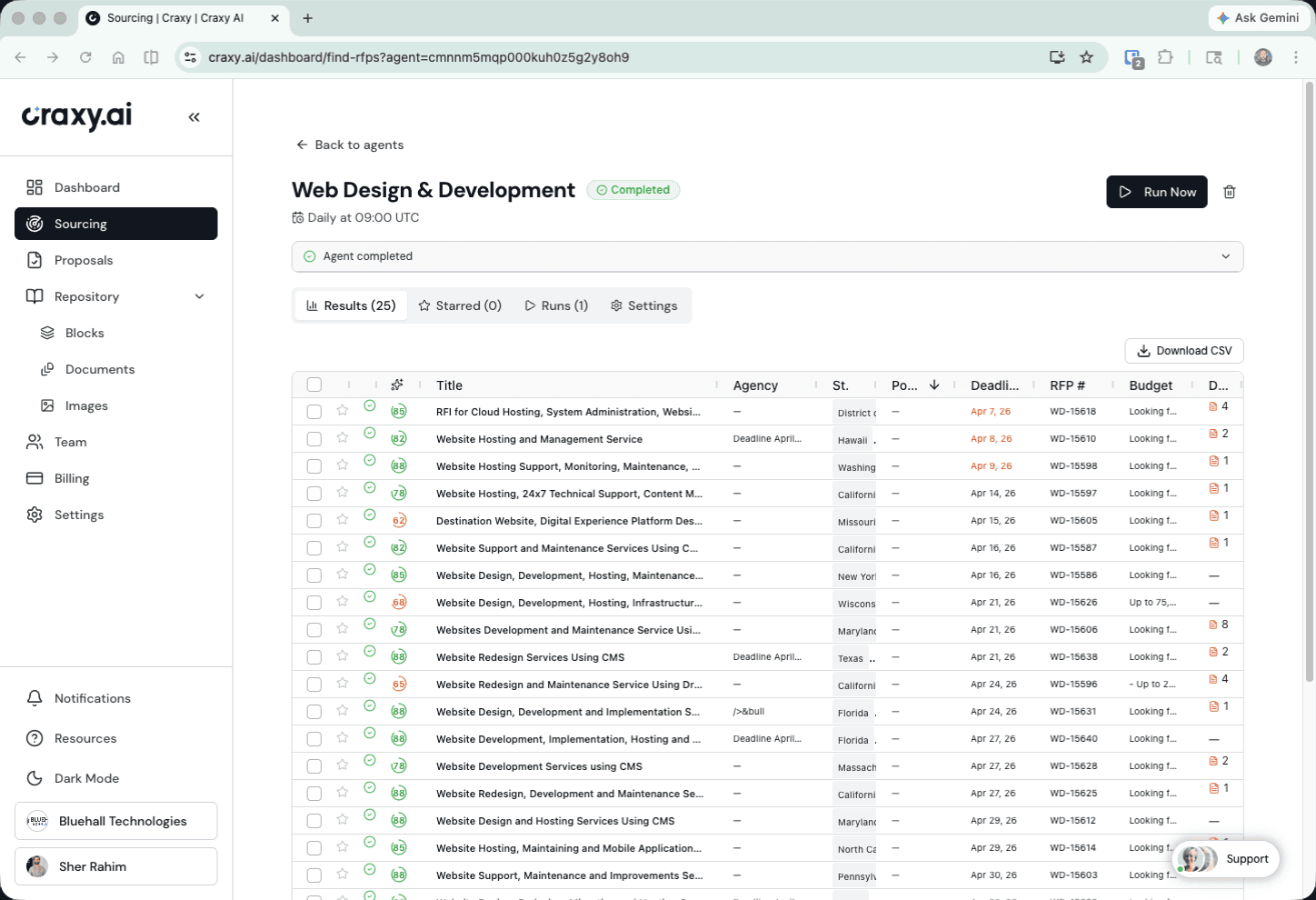 Agent results table with columns for title, agency, deadline, score, and documents
Each result includes:
Title and Agency — What the opportunity is and who posted it. Click the title to view the original posting.
Deadline — When responses are due. Deadlines less than 7 days away are highlighted in red.
Budget — Estimated or stated budget range, when available.
Documents — Attached PDFs, specifications, and addenda. Download directly from the table.
Understanding AI Scores
This is where sourcing gets powerful. Each opportunity receives a percentage score based on how well it matches your company profile:
The scoring engine reads the actual solicitation and evaluates it against your company profile — past performance, certifications, team size, and geographic coverage. It does not just match keywords.
Step 5: Take Action on Opportunities
When you find opportunities worth pursuing, you have four options:
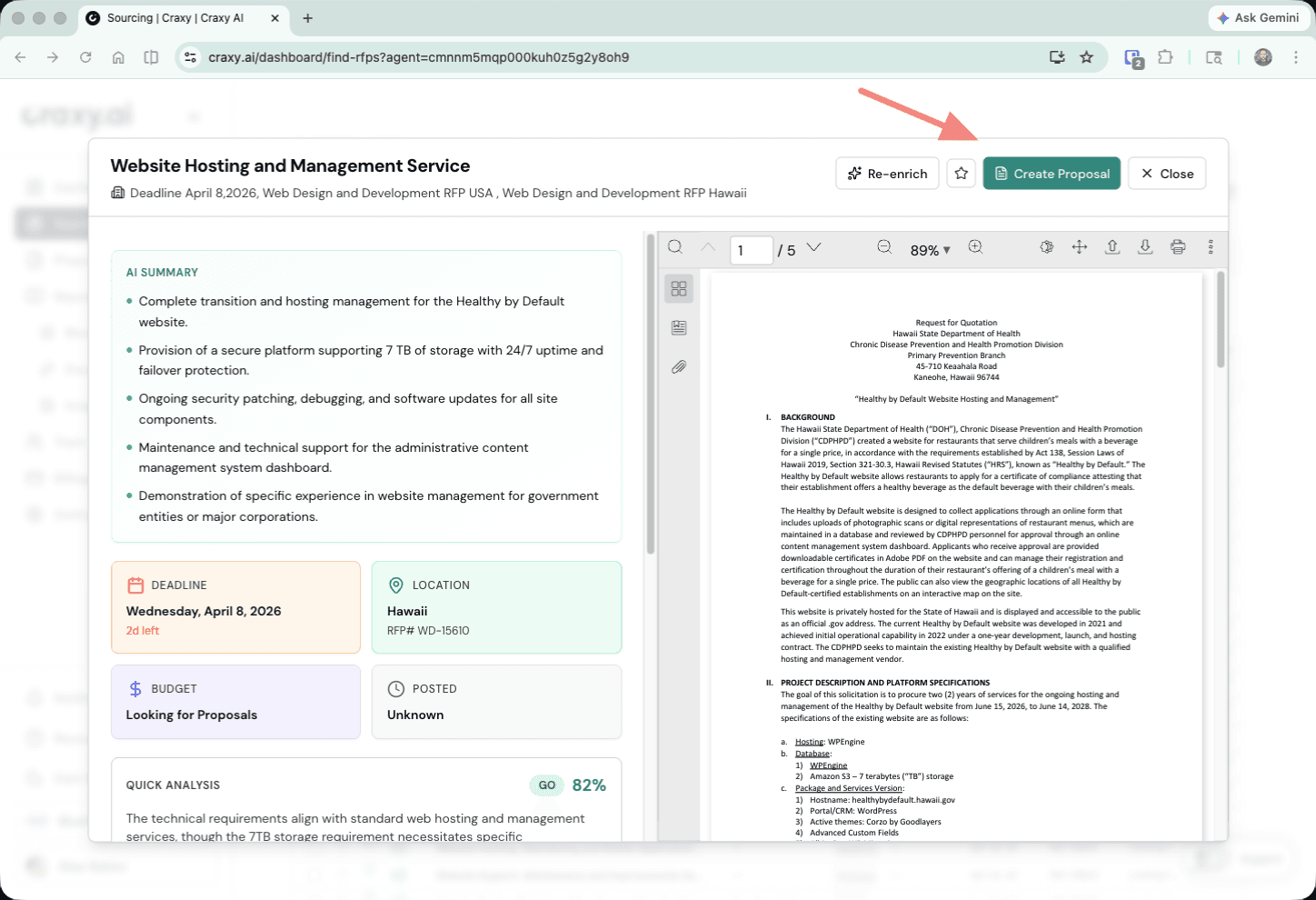 Result detail view with AI summary, deadline, budget, and Create Proposal button
Step 6: Manage Your Agents
Back on the sourcing dashboard, each agent card includes management controls.
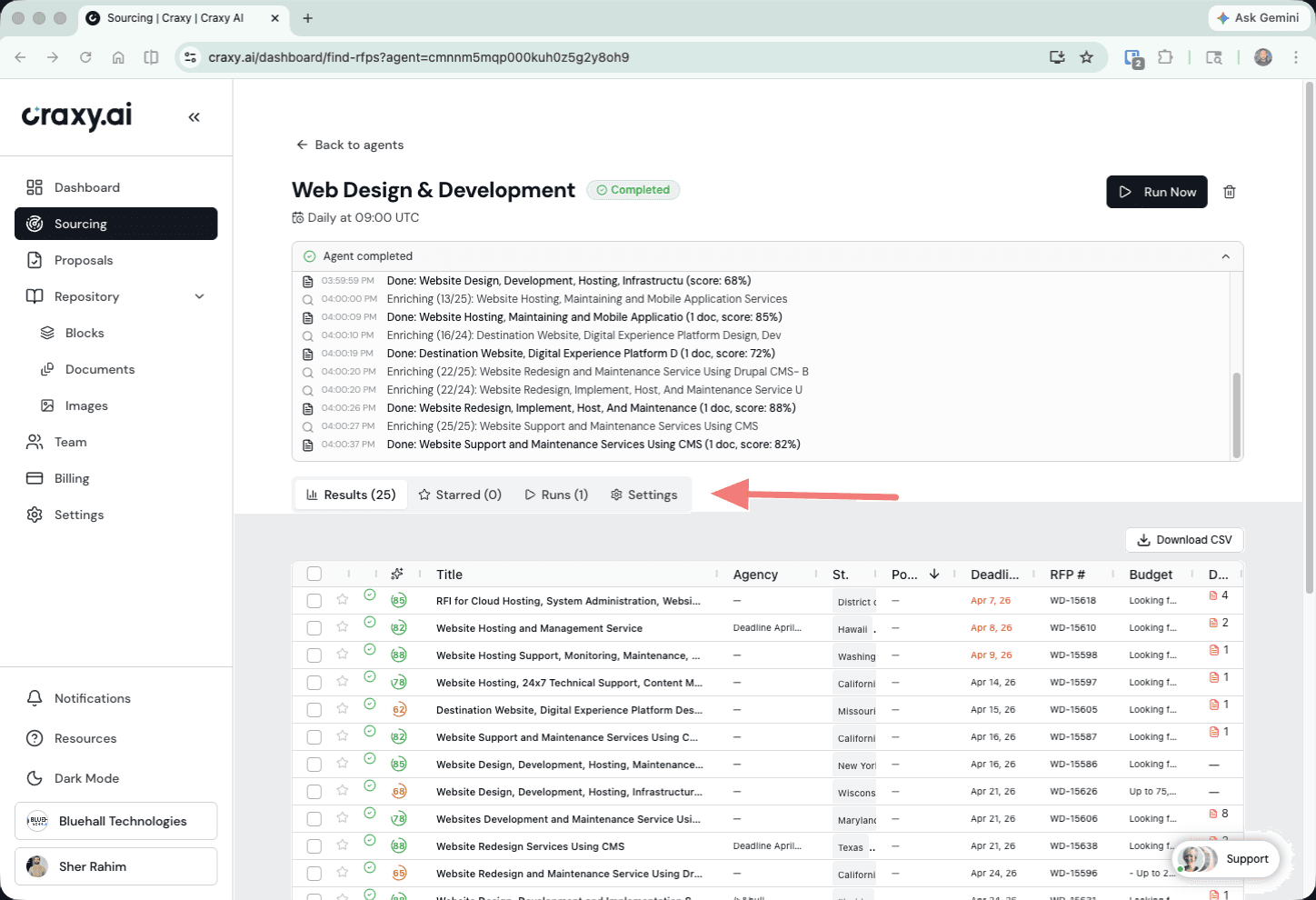 Agent activity log showing runs, enrichment status, and results
| Action | When to Use |
|---|---|
| Edit | Update keywords, schedule, industry, location, or notification emails anytime. |
| Pause / Resume | Stop scanning without deleting. Good during budget freezes or quiet periods. |
| Manual Run | Trigger a scan immediately instead of waiting for the schedule. |
| Activity Log | View history of all runs — timestamps, result counts, errors. |
| Delete | Permanently remove the agent and all its results. |
Pro Tips for Better Results
Upload strong knowledge base documents. The AI scoring is only as good as the context you give it. A detailed capability statement with certifications, NAICS codes, and past performance produces much better scores than a generic company brochure.
Run multiple agents for different verticals. If you serve both IT and construction, create separate agents with tailored keywords, categories, and scoring criteria.
Set daily schedules for competitive markets. Government RFPs can have short response windows. Daily scanning means you see opportunities the day they are posted, not a week later.
Check your notification emails. The system sends alerts when new opportunities are found, but only if you configure notification addresses in agent settings.
Use the "Create Proposal" shortcut. When you go straight from a sourcing result into a proposal, the RFP documents are pre-loaded. You can review them, add additional documents, and kick off the analysis when you are ready.
Frequently Asked Questions
How do AI sourcing agents find RFPs?
Craxy AI sourcing agents scan 1,000+ procurement sites across 70+ categories, including SAM.gov, state and local portals, and international procurement platforms. You configure agents with keywords, industry, location, and company profile, and they run on your schedule.
What procurement sites does Craxy AI scan?
Craxy AI scans SAM.gov, state and local government portals, international procurement platforms, and commercial RFP sites across 70+ industry categories. The platform covers 1,000+ procurement sources so you do not have to check them manually.
How often do sourcing agents check for new opportunities?
You choose the schedule when creating an agent: daily, twice daily, or weekly. You can also trigger a manual scan at any time. Daily scanning is recommended for competitive markets where RFPs have short response windows.
What does the GO / CAUTION / NO-GO score mean?
Each opportunity is scored against your company profile. GO means it is a strong match for your capabilities. CAUTION means it partially matches but may have gaps. NO-GO means it is unlikely to be a good fit. This scoring helps BD teams prioritize their pipeline.
Can I go directly from a sourcing result to writing a proposal?
Yes. Each sourcing result has a Create Proposal button that pre-loads the RFP documents into the proposal wizard. You can review the documents, add additional context, and start the AI analysis immediately.
What Happens Next
Once you identify a strong opportunity, the natural next step is to build a proposal. For a walkthrough of the full proposal process, read the companion tutorial:
Start Finding Opportunities Today
Your competitors are already scanning procurement sites you have never heard of. Set up your first sourcing agent in five minutes and see what you have been missing.