



You just found an RFP that looks like a perfect fit. The deadline is in two weeks. Your team has the capabilities, the past performance, and the certifications.
Now you need to turn all of that into a polished proposal that scores well against the evaluation criteria.
This is where most teams hit friction. Reading a 200-page RFP takes hours. Mapping requirements to sections takes more hours. Writing compliant, persuasive content takes days. And if you are juggling multiple proposals simultaneously, every hour counts.
Craxy AI compresses this timeline. The AI reads the RFP, extracts requirements and evaluation criteria, generates a compliance-mapped outline, and helps you write each section — all while referencing your company knowledge base for accurate, relevant content.
What You'll Need
Knowledge base documents make a massive difference in content quality. The AI references them when generating drafts, pulling in accurate company details, certifications, and past performance — instead of writing generic content.
Step 1: Start a New Proposal
From your dashboard, click New Proposal or navigate to Proposals > Create New. This launches the proposal creation wizard.
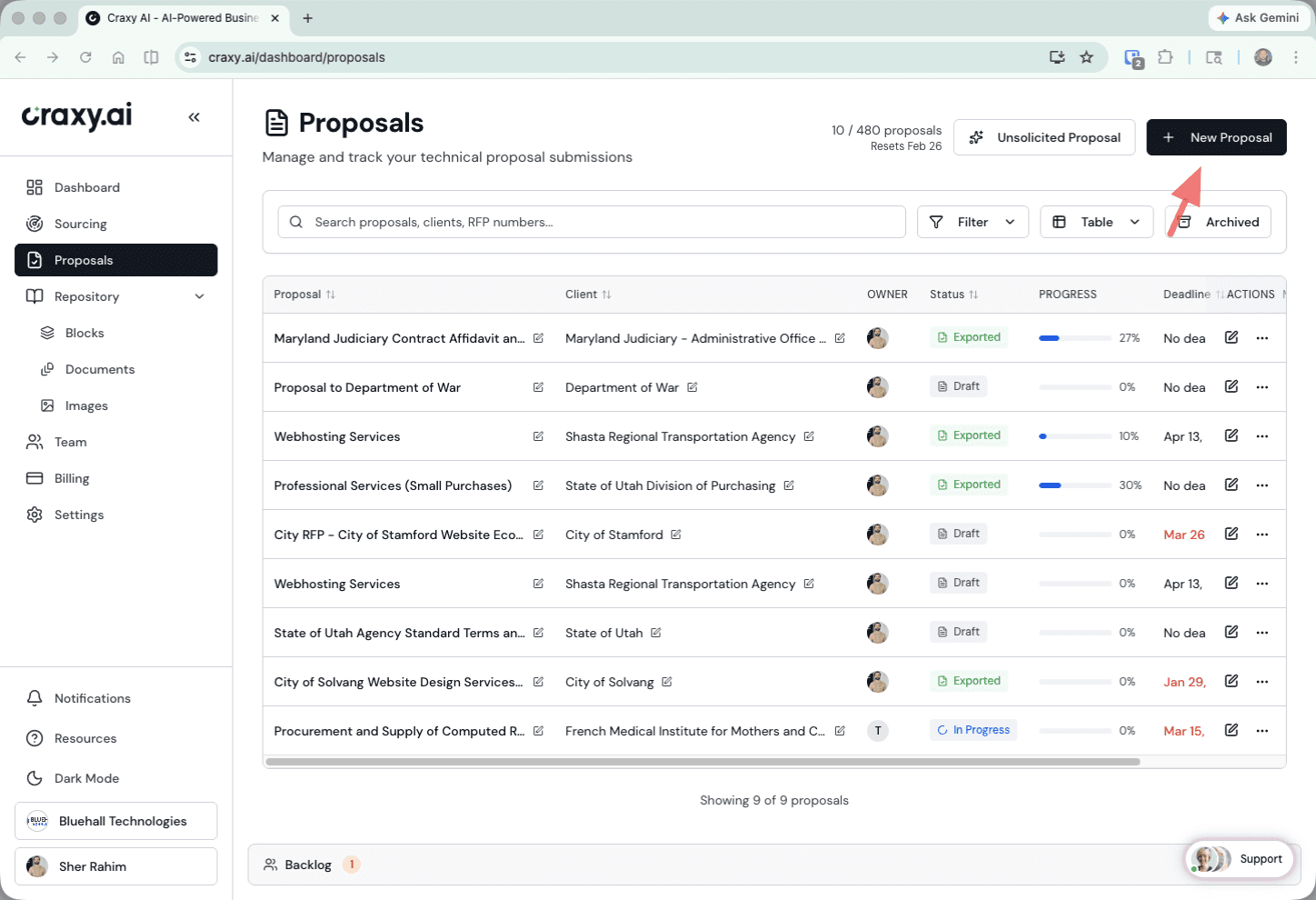 Proposals dashboard with the New Proposal button highlighted
Step 2: Upload the RFP
Drag and drop your RFP document(s) into the upload area, or click to browse.
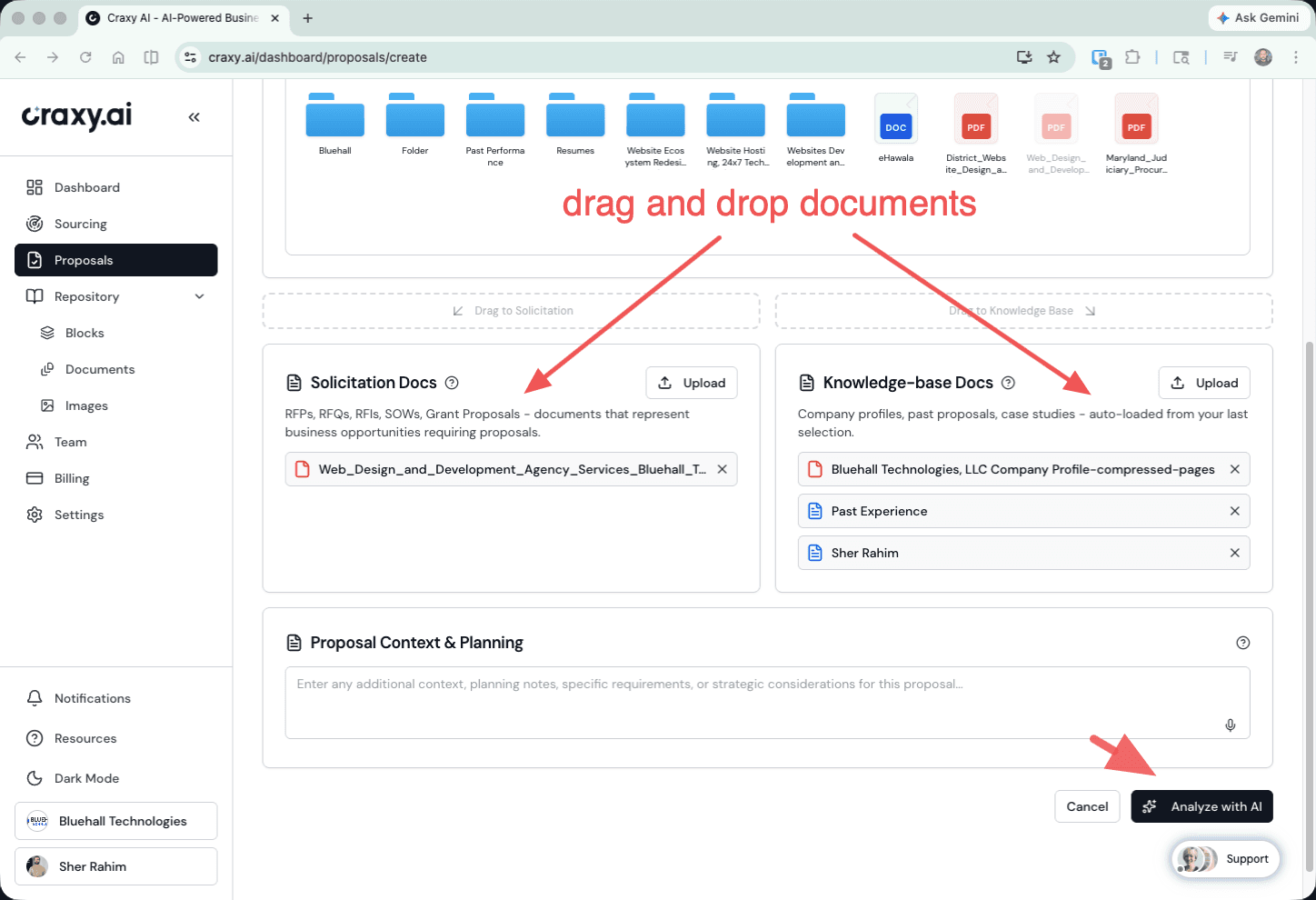 Upload area with RFP documents and knowledge base document picker
The upload step includes two important extras:
Select Knowledge Base Documents — Choose relevant company materials from your knowledge base. The more relevant documents you select, the more accurate and detailed the AI-generated content will be. You can also upload new KB docs right here.
Add Context Notes — Optionally type or dictate additional context about the opportunity. For example: "We partnered with Acme Corp on a similar project last year — reference that in the executive summary." This gets passed to the AI during analysis and writing.
| Limit | Value |
|---|---|
| Max RFP files | 10 |
| Max KB documents | 10 |
| Max file size | 20MB each |
| Max total upload | 400MB |
Click Analyze to start the AI analysis.
Step 3: AI Analysis
This is where Craxy AI reads the entire RFP and extracts everything your team needs. The analysis streams in progressively — you see results appearing in real time as each pass completes.
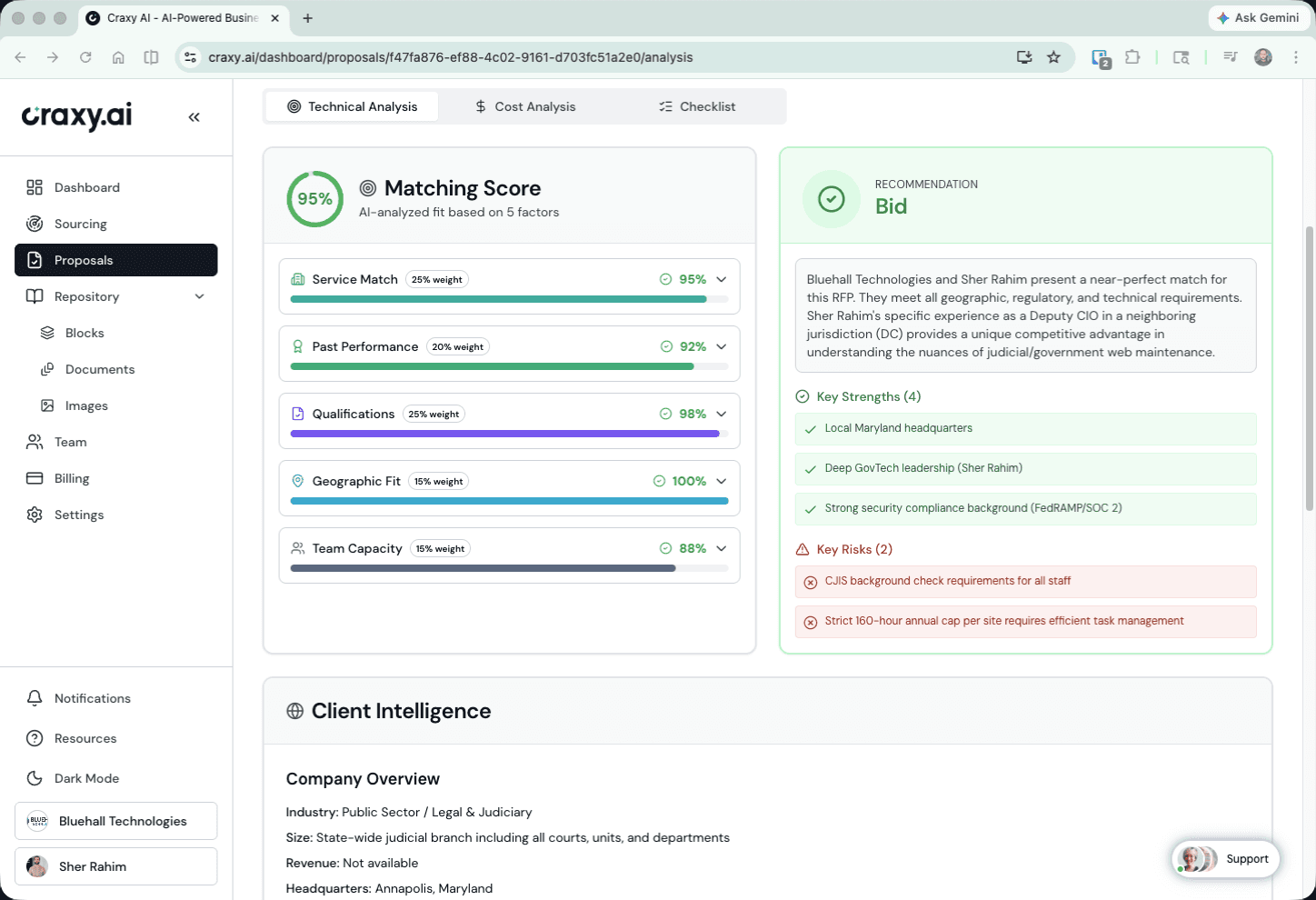 AI analysis showing Matching Score, Go/No-Go recommendation, and Client Intelligence
What the AI Extracts
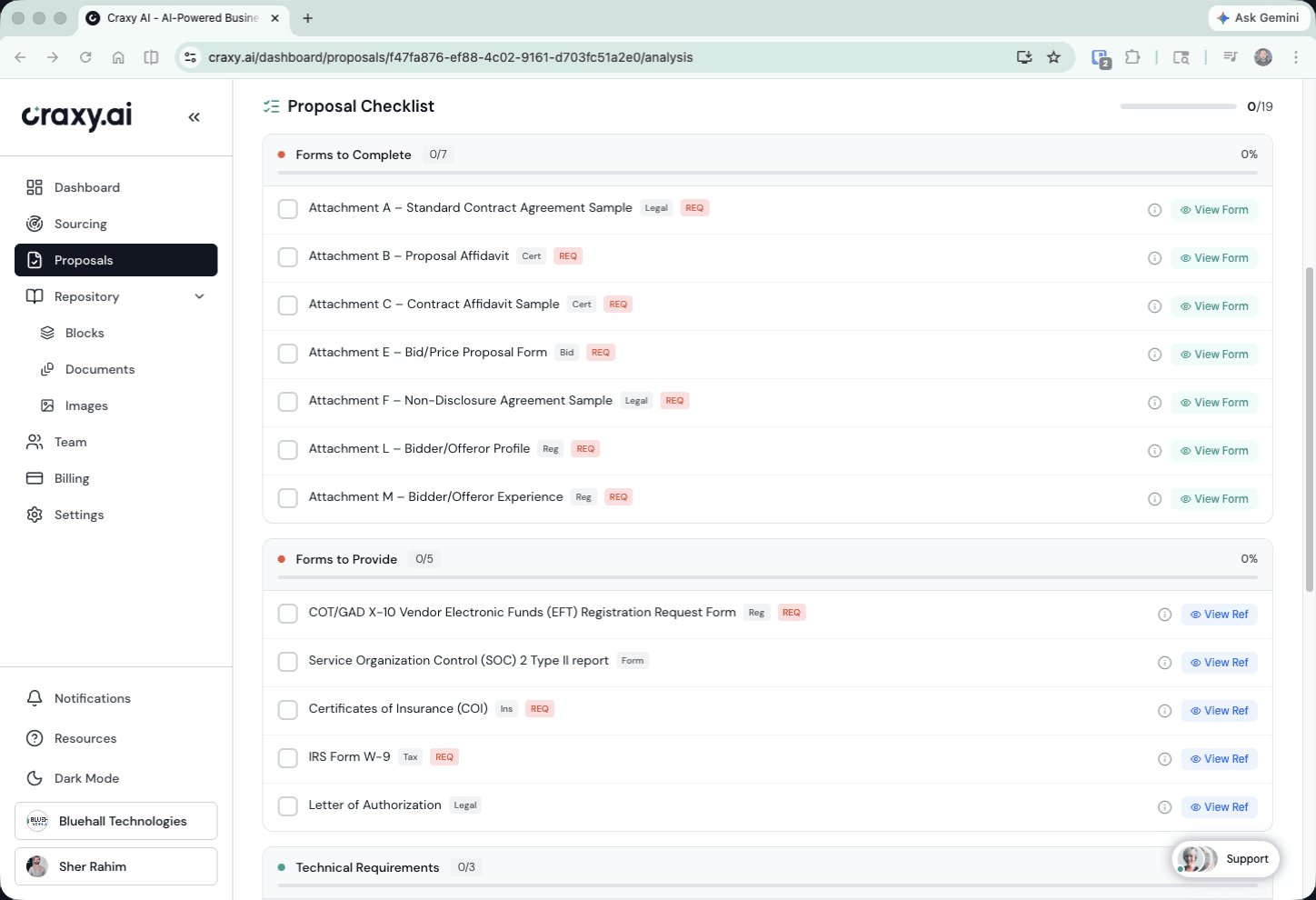 Proposal checklist showing forms to complete and forms to provide
Step 4: Decide — Proceed or Backlog
After reviewing the analysis, you have two paths forward:
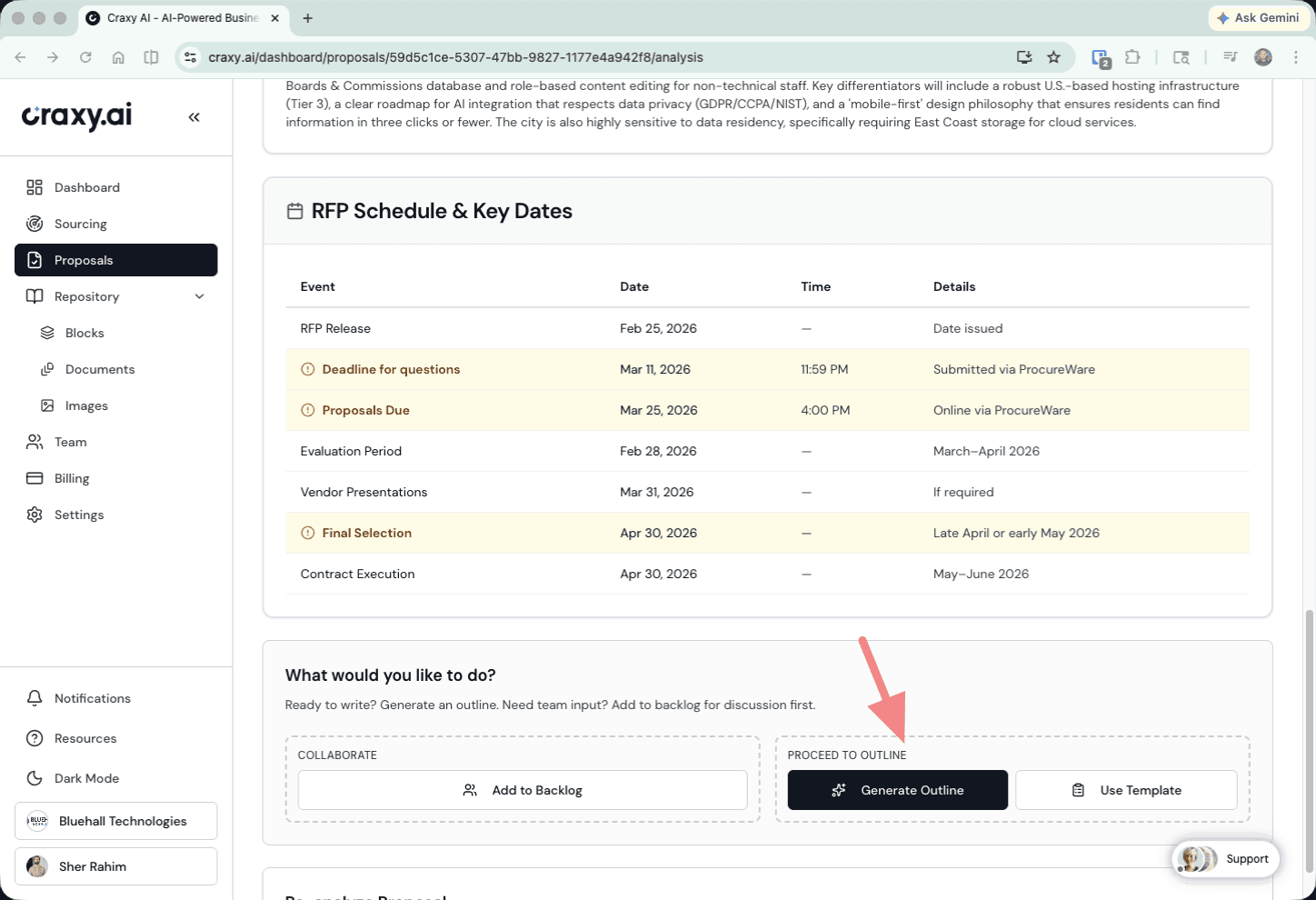 Key dates and decision buttons — Add to Backlog, Generate Outline, Use Template
Step 5: Build the Outline
The outline editor is where you structure your proposal before writing begins.
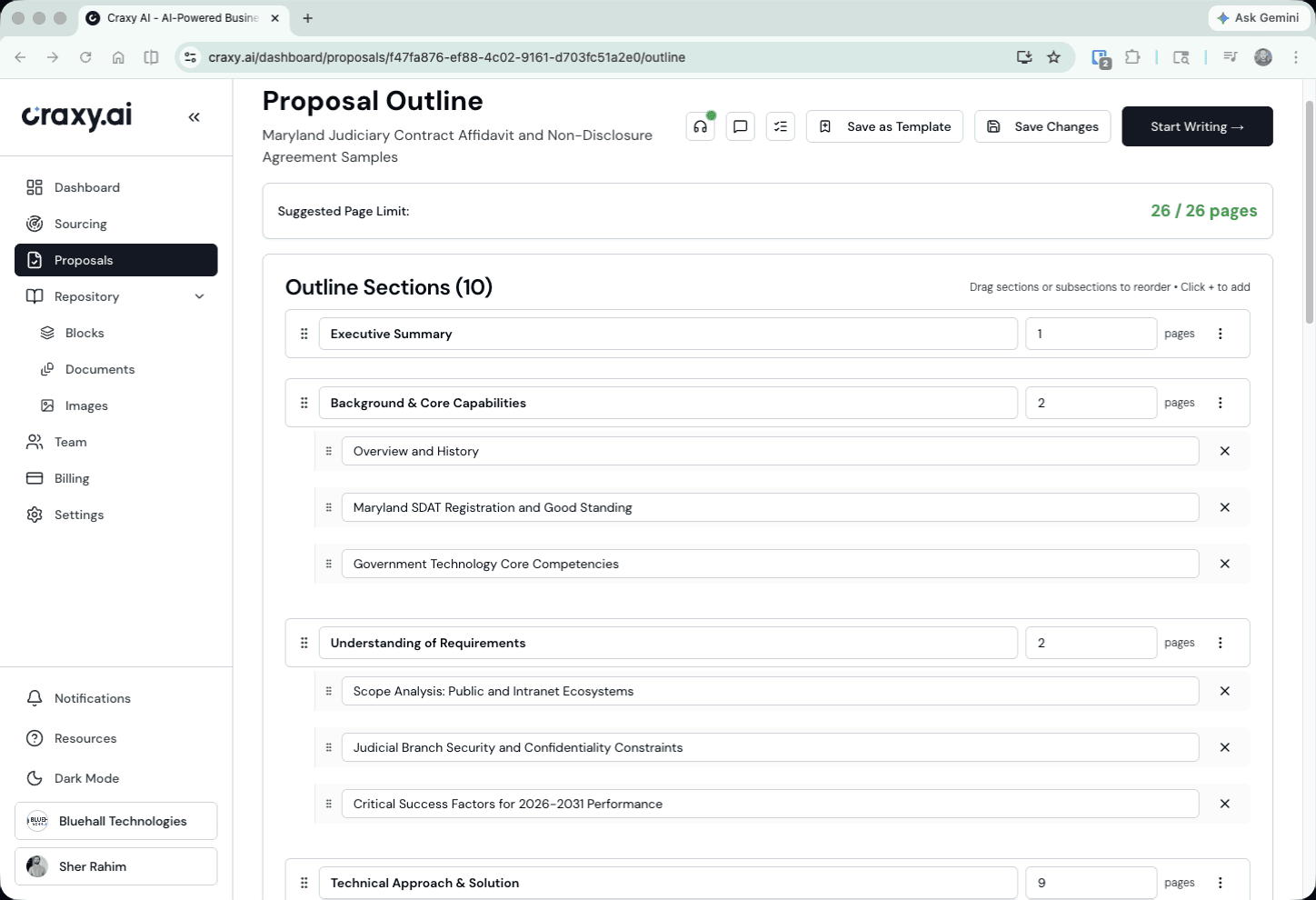 Outline editor with generated sections, page limits, and Start Writing button
The AI-generated outline includes:
Sections mapped to evaluation criteria — Each section addresses specific RFP requirements. The structure aligns with how evaluators will actually score the proposal.
Page limits — Suggested page counts based on evaluation weights. Sections worth more points get more pages.
Requirement coverage — A compliance checklist showing which requirements are addressed by which sections. Nothing falls through the cracks.
Customizing the Outline
You have full control over the structure:
| Action | How |
|---|---|
| Reorder sections | Drag and drop to rearrange |
| Edit titles and descriptions | Click to refine what each section covers |
| Add or remove sections | Insert custom sections or remove irrelevant ones |
| Adjust page limits | Override suggested lengths |
| Reference the RFP | Embedded document viewer — no tab switching |
| View required forms | Toggle and manage detected forms and attachments |
When you are satisfied with the structure, move to the writing phase.
Step 6: Write Proposal Content
The proposal writer is where your team builds the actual content, section by section.
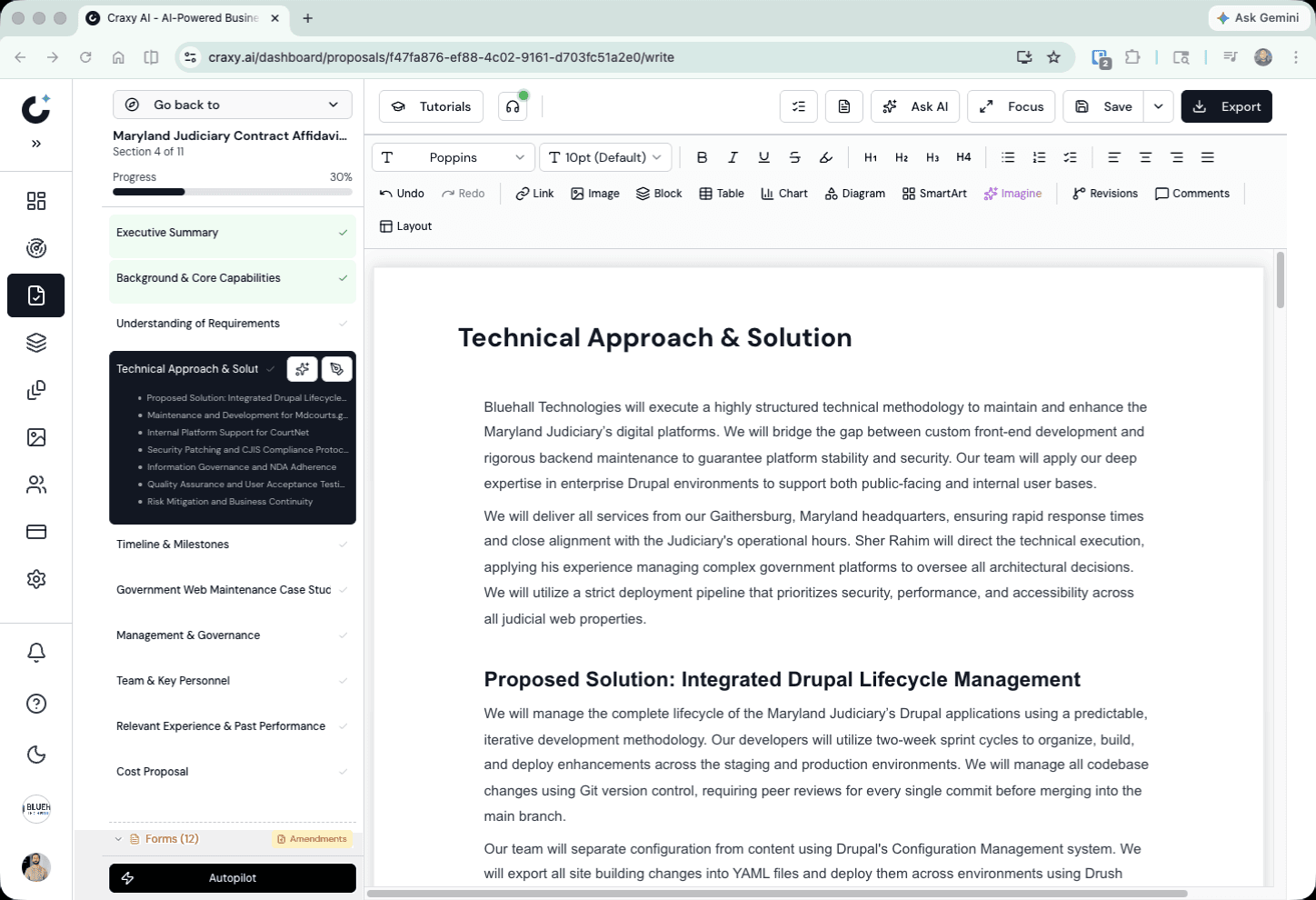 Proposal writer with rich text editor, section navigation, and toolbar
AI Content Generation
Select a section and click Generate Content. The AI writes a first draft that:
- Addresses the specific RFP requirements mapped to that section
- References your knowledge base for accurate company details
- Follows proposal writing best practices
- Stays within the suggested page limit
The generated content is a starting point. Edit it, expand it, rewrite parts of it. The AI gives you a foundation — your team adds the expertise and judgment.
Three Ways to Refine Content
Real-Time Collaboration
Working with a team? The writer includes built-in collaboration:
Section locking — See who is editing which section in real time. The editor prevents conflicts by locking active sections.
Comments — Leave feedback on specific sections for co-authors to review.
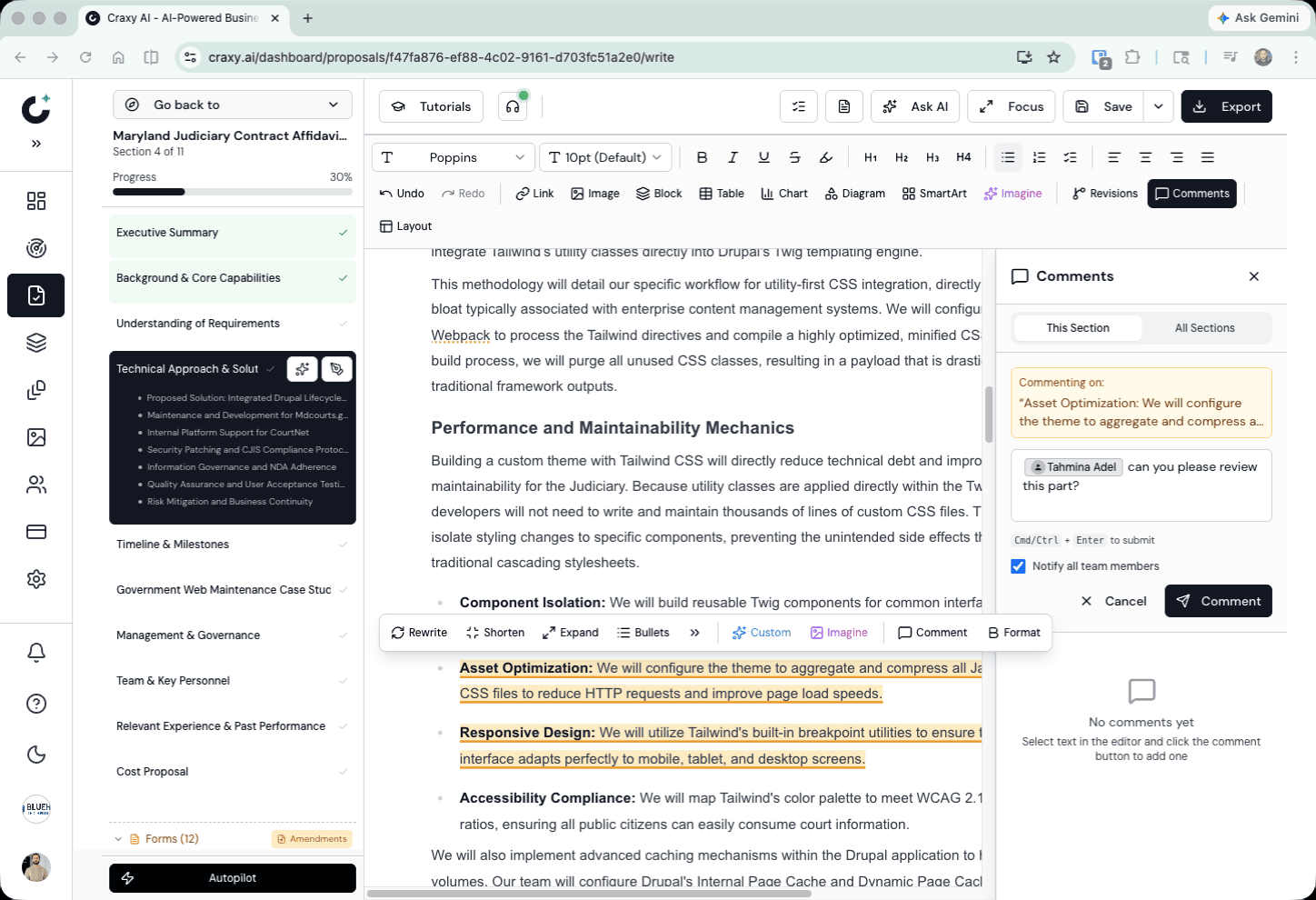 Writer with inline comments, Imagine transforms, and collaboration features
Step 7: Readiness Review
Before exporting, run the Readiness Review. The AI evaluates your completed proposal against the RFP requirements and flags issues.
The review checks for:
Use the review to guide final edits. Address the gaps, strengthen the weak areas, and verify every mandatory requirement has a clear, traceable response.
Step 8: Export Your Proposal
Navigate to the export step to generate a professionally formatted document.
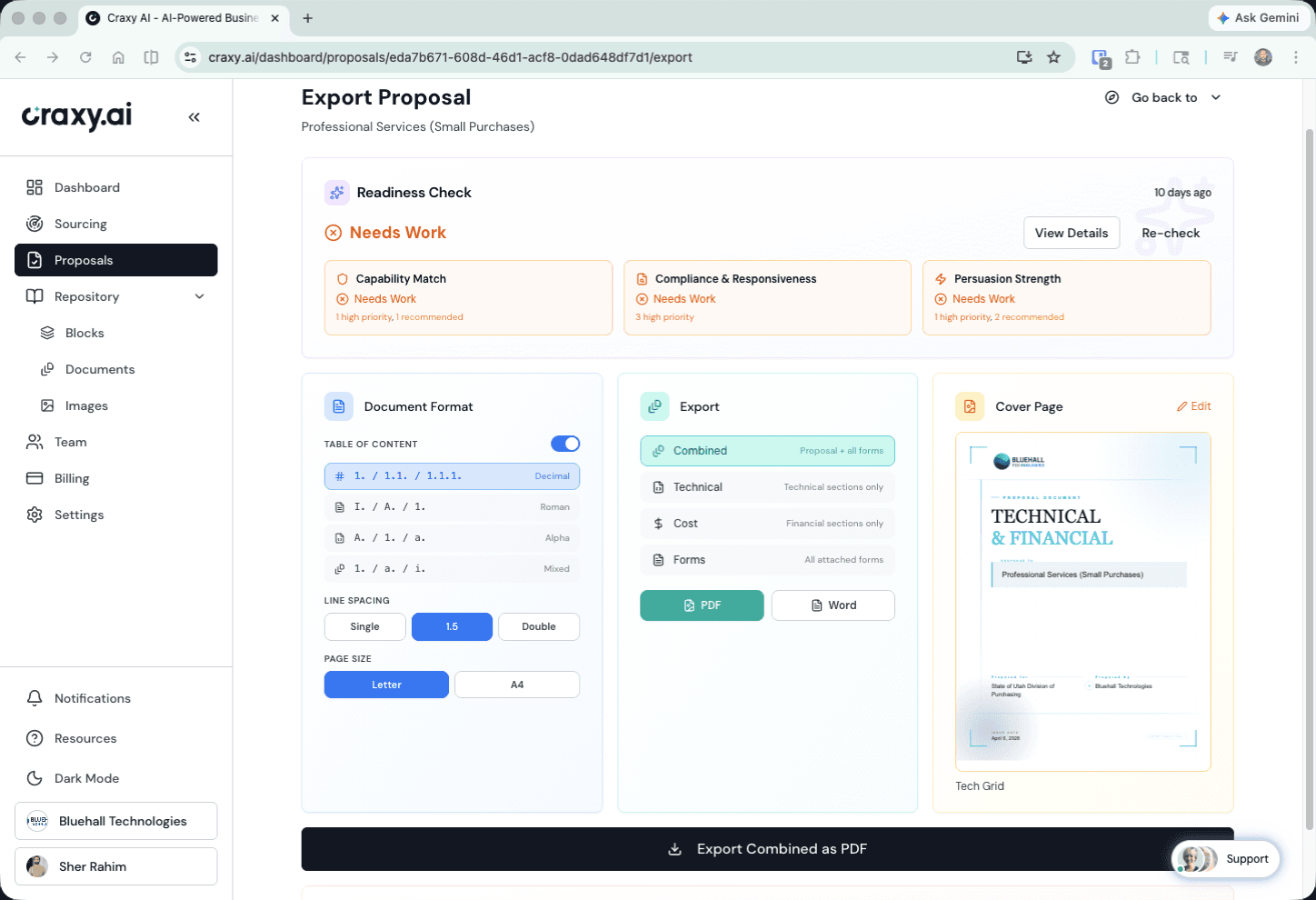 Export page with readiness check, document format selection, and cover page preview
The export applies your organization branding — logo placement, color scheme, headers/footers, and font choices. You configure these once in organization settings, and every export uses them automatically.
Track Through the Pipeline
After export, update the proposal status to track its progress:
Tips for Stronger Proposals
Upload quality knowledge base documents. Detailed past performance write-ups, team bios with relevant certifications, and previous winning proposals produce significantly better content than generic brochures.
Let the AI handle the first draft. Do not stare at a blank page. Generate the AI draft, then edit with your expertise. Consistently faster than writing from scratch, even for experienced proposal writers.
Use evaluation criteria to prioritize. If technical approach is worth 40% of the score and management plan is worth 15%, your technical sections should get proportionally more attention and detail.
Address every requirement explicitly. Evaluators score against a checklist. If they cannot find your response to a specific requirement, it counts the same as not responding. Use the compliance checklist in the outline editor to track this.
Run the readiness review before exporting. Two minutes of checking catches gaps that are easy to miss after days of writing.
Export early for formatting review. Generate a PDF draft early to check pagination and branding. Fix layout issues before the deadline pressure hits.
Frequently Asked Questions
How long does it take to respond to an RFP with AI?
Most teams go from RFP upload to export-ready draft in hours instead of weeks. AI analysis takes about 2 minutes, outline generation is near-instant, and content writing produces a full first draft in 15-30 minutes depending on proposal length.
Can AI write a compliant government proposal?
Yes. Craxy AI extracts every requirement from the RFP during analysis and maps them to your proposal outline. Content generation references these requirements, and the readiness review checks your draft against them before you submit.
What documents do I need to respond to an RFP?
You need the RFP document itself and ideally knowledge base documents like past performance write-ups, team bios, capability statements, and certifications. The more relevant context you provide, the better the AI-generated content will be.
What is a Go/No-Go recommendation?
A Go/No-Go recommendation is an AI assessment of whether an RFP is worth pursuing based on your company capabilities, the requirements, timeline, and competition level. It helps BD teams focus effort on winnable opportunities instead of chasing every RFP.
Can I edit the AI-generated proposal content?
Yes. AI generates a first draft for each section that you can edit freely in the rich text editor. Most teams find it faster to refine an AI draft than to write from scratch, especially when the AI has referenced their knowledge base for accuracy.
Related Tutorial
Found this helpful? If you are not yet using AI to find opportunities automatically, check out the sourcing tutorial:
Build Your Next Proposal in Hours, Not Days
The gap between finding an RFP and submitting a polished proposal is where deals are won or lost. Craxy AI compresses that gap — so your team spends less time on mechanics and more time on strategy.